OpenCV 入门实例
接下来我们来看一个简单的 OpenCV 实例,我们将实现以下功能:
读取一张图像。
显示图像。
保存图像。
添加简单的用户交互。
可以以以下图片为例:
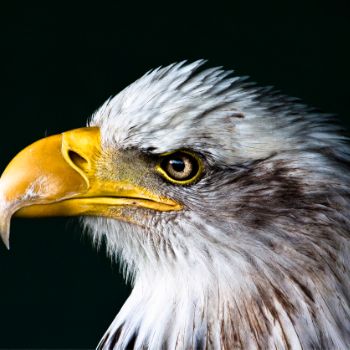
以下代码保存在 display\_image.py 文件中:
实例(Python)
python
# 导入 OpenCV 库

import cv2

# 1. 读取图像

# 替换为实际的图像路径,这里是当前目录下的 "bird.jpg"

image_path = "./bird.jpg"

image = cv2.imread(image_path)

# 检查图像是否成功读取

if image is None:

    print("错误:无法加载图像,请检查路径是否正确。")

    exit()

# 2. 显示图像

# 创建一个名为 "Display Image" 的窗口,并在其中显示图像

cv2.imshow("Display Image", image)

# 3. 等待用户按键

# 参数 0 表示无限等待,直到用户按下任意键

key = cv2.waitKey(0)

# 4. 根据用户按键执行操作

if key == ord('s'):  # 如果按下 's' 键

    # 保存图像

    output_path = "saved_image.jpg"

    cv2.imwrite(output_path, image)

    print(f"图像已保存为 {output_path}")

else:  # 如果按下其他键

    print("图像未保存。")

# 5. 关闭所有窗口

cv2.destroyAllWindows()
执行以下命令:
bash
python display_image.py弹出窗口显示如下:
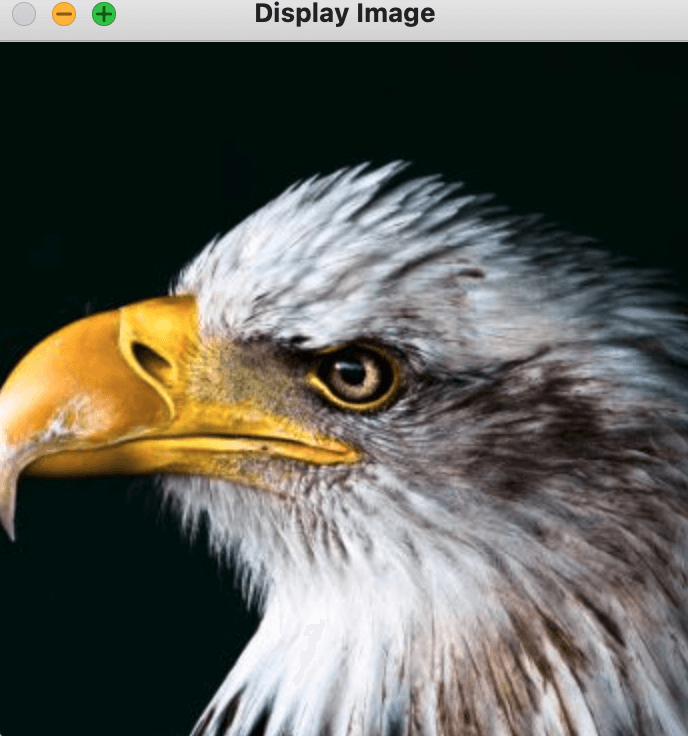
在显示的图像窗口中,按下 s 键保存图像,或按下其他键退出。
以上实例的 C++ 代码如下:
实例(C++)
python
#include <opencv2/opencv.hpp>

#include <iostream>

using namespace cv;

using namespace std;

int main() {

    // 1. 读取图像

    // 替换为实际的图像路径,这里是当前目录下的 "bird.jpg"

    string image_path = "./bird.jpg";

    Mat image = imread(image_path);

    // 检查图像是否成功读取

    if (image.empty()) {

        cout << "错误:无法加载图像,请检查路径是否正确。" << endl;

        return -1;

    }

    // 2. 显示图像

    // 创建一个名为 "Display Image" 的窗口,并在其中显示图像

    namedWindow("Display Image", WINDOW_AUTOSIZE);

    imshow("Display Image", image);

    // 3. 等待用户按键

    // 参数 0 表示无限等待,直到用户按下任意键

    int key = waitKey(0);

    // 4. 根据用户按键执行操作

    if (key == 's') {  // 如果按下 's' 键

        // 保存图像

        string output_path = "saved_image.jpg";

        imwrite(output_path, image);

        cout << "图像已保存为 " << output_path << endl;

    } else {  // 如果按下其他键

        cout << "图像未保存。" << endl;

    }

    // 5. 关闭所有窗口

    destroyAllWindows();

    return 0;

}
扩展练习
接下来我们可以尝试做一些代码的修改。
**1、修改窗口名称:**将 "Display Image" 改为其他名称,例如 "My Image"。
python
cv2.imshow("My Image", image)**2、保存为不同格式:**将 "saved_image.jpg" 改为 "saved_image.png",观察保存结果。
python
# 4. 根据用户按键执行操作
if key == ord('s'):  # 如果按下 's' 键
    # 保存图像
    output_path = "saved_image.png"
    cv2.imwrite(output_path, image)
    print(f"图像已保存为 {output_path}")
**3、添加更多交互:**例如,按下 'q' 键直接退出程序。
python
if key == ord('s'):  # 如果按下 's' 键
    # 保存图像
    output_path = "saved_image.jpg"
    cv2.imwrite(output_path, image)
    print(f"图像已保存为 {output_path}")
elif key == ord('q'):  # 如果按下 'q' 键
    print("程序已退出。")
else:  # 如果按下其他键
print("图像未保存,程序已退出。")ord('q')返回字符'q'的 ASCII 码值。如果用户按下
'q'键,打印提示信息"程序已退出。",然后程序会继续执行cv2.destroyAllWindows()关闭窗口并退出。
AI 思考中...